BitMiner24 · Guide
Set up the BitMiner One:
with the BitMiner24 app
How to set up your BitMiner One: over Bluetooth with the BitMiner24 app, with your 2.4 GHz Wi-Fi and your own Bitcoin address. Without the app, use the One setup Wi-Fi in your browser.
Prepare for your first start.
- BitMiner One, a suitable 5 V USB power supply and USB-C cable.
- Available 2.4 GHz home Wi-Fi and its password.
- A compatible smartphone with the BitMiner24 app and Bluetooth. Get the app: App Store · Google Play · About the app
- Your own public Bitcoin receiving address. Create an address
Keep recovery words and private keys in your wallet. The miner only needs your public receiving address.
Connect power. Check the display.
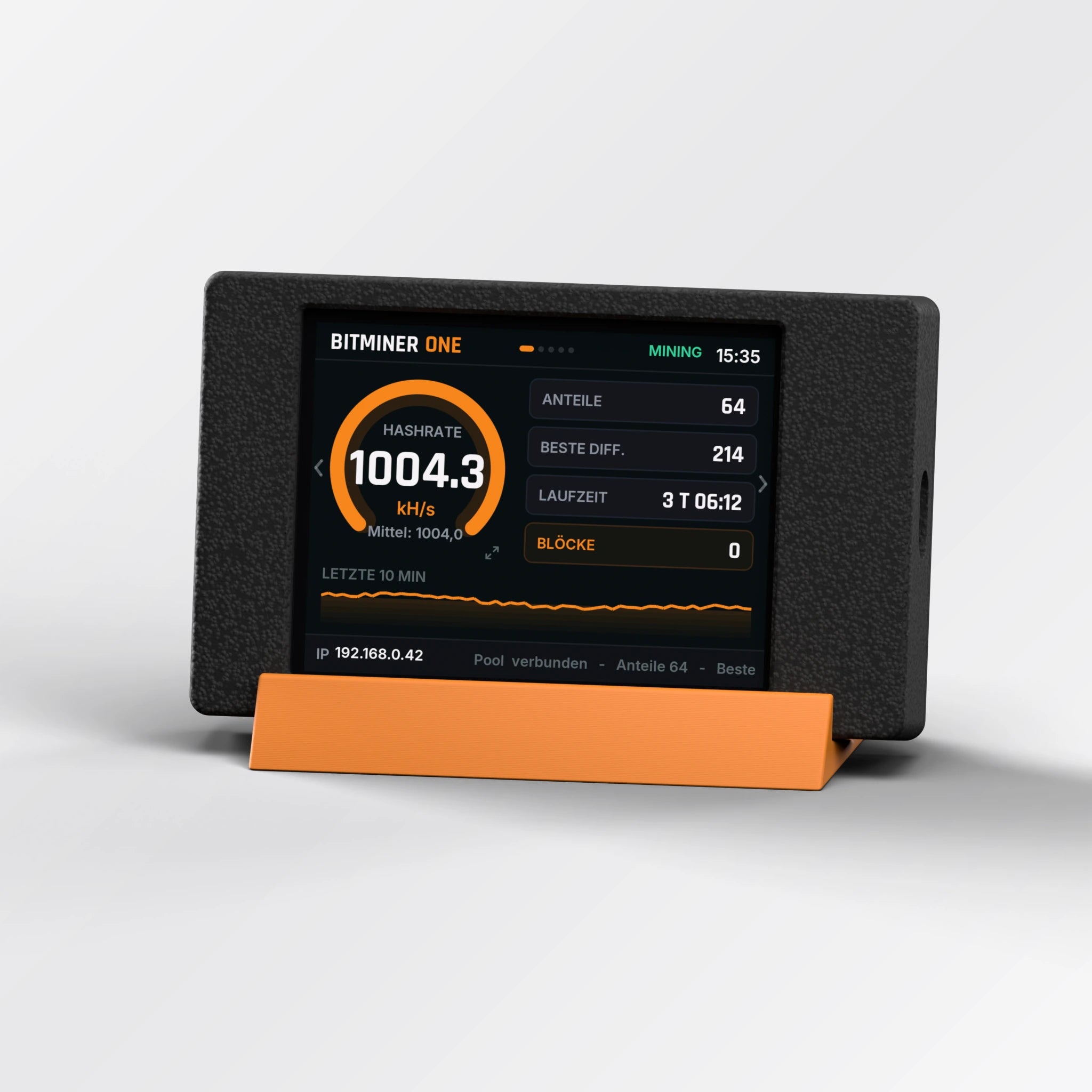
Connect BitMiner One to a suitable 5 V USB supply. Place it securely on its stand. A touch stylus for the touch display is included.
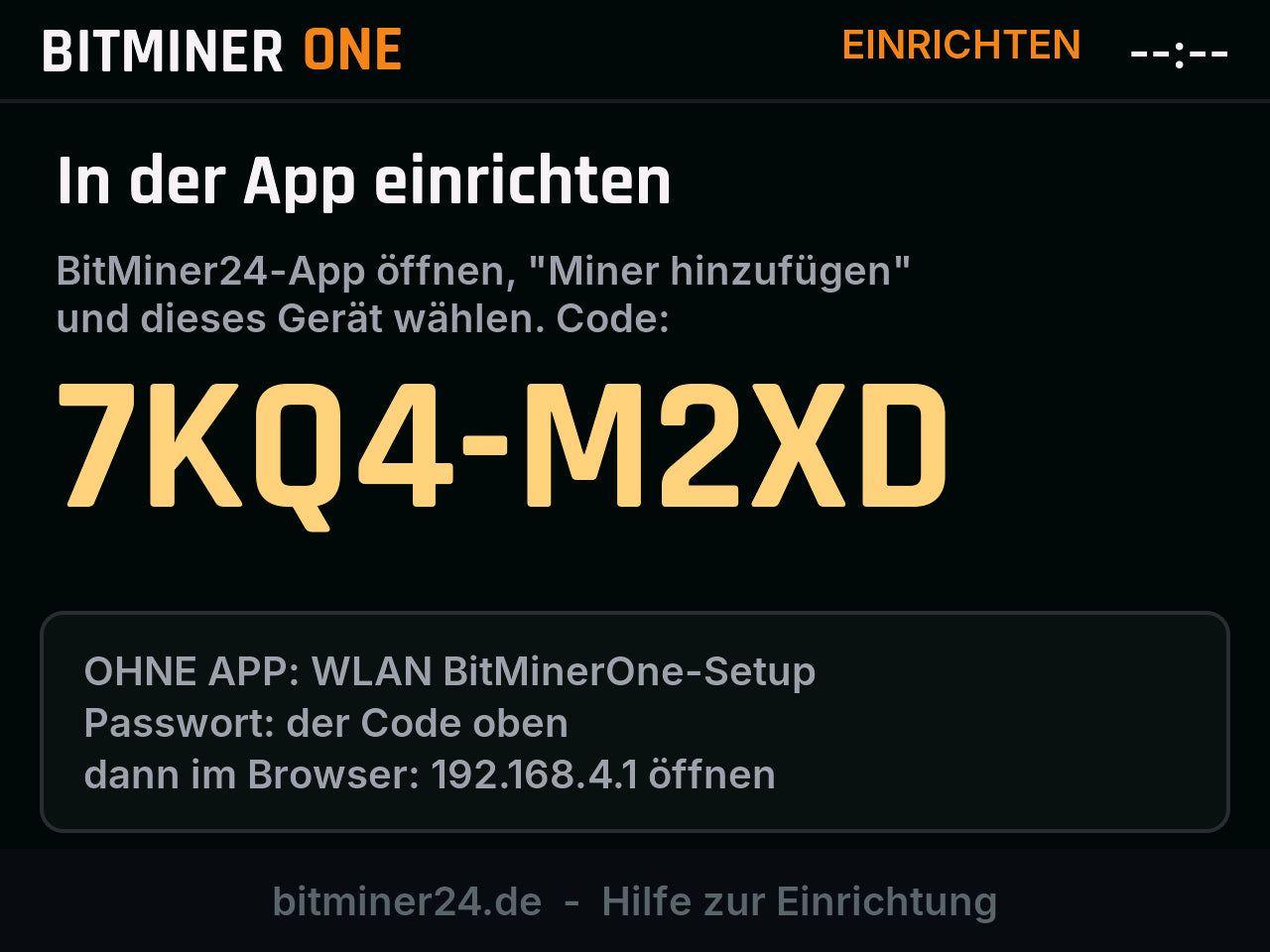
Wait for the setup view and device code. A configured miner may start mining directly; initial setup does not need repeating.
Connect your miner in the app.
- Open the BitMiner24 app and choose “Add device”.
- Enable Bluetooth and the required app permissions.
- Select your own device and compare its name with the display.
- If prompted, use the code shown on your device.
Keep the phone close to the miner. The code in this guide is an example and does not belong to a real device.
Explore the app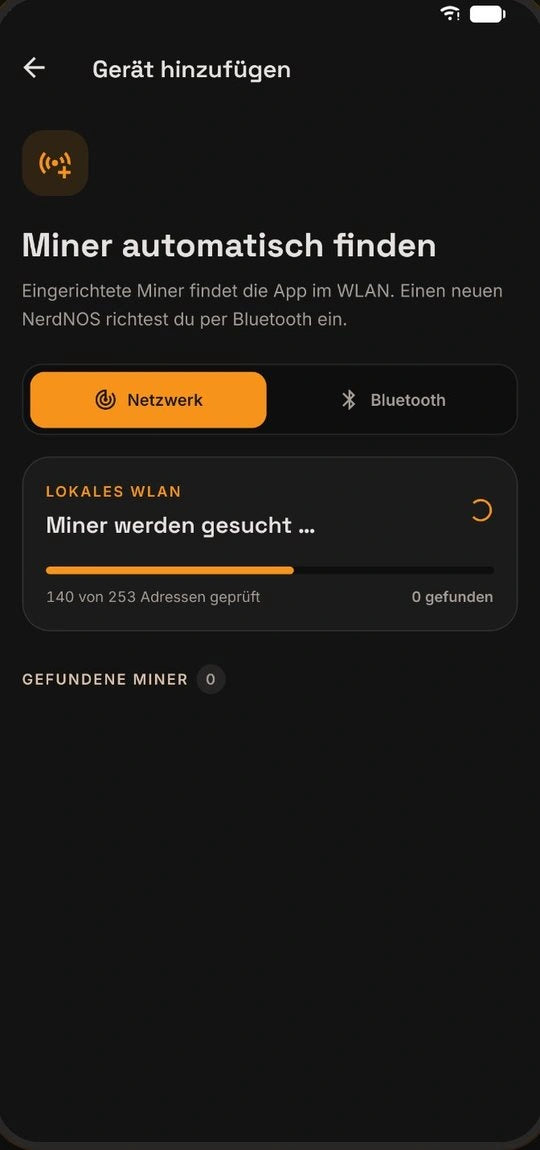
Save home Wi-Fi and your Bitcoin address.
Choose your own home Wi-Fi. A network named after the miner is only for setup. Enter its password and your own Bitcoin receiving address, then check both before saving.
The miner uses 2.4 GHz. Your router may also offer 5 GHz under the same name. A phone on the same local network may stay on 5 GHz. Keep the intended pool settings unless you deliberately choose another compatible solo pool.
Confirm configuration and allow any expected restart to finish. A temporary Bluetooth disconnect during restart is not itself an error.
Check that your miner is working.
- Wi-Fi connected: the miner has an IP address on your home network.
- Pool reachable: the miner receives mining jobs.
- Hashrate present: the device is calculating hashes.
- Your own Bitcoin address is saved correctly.
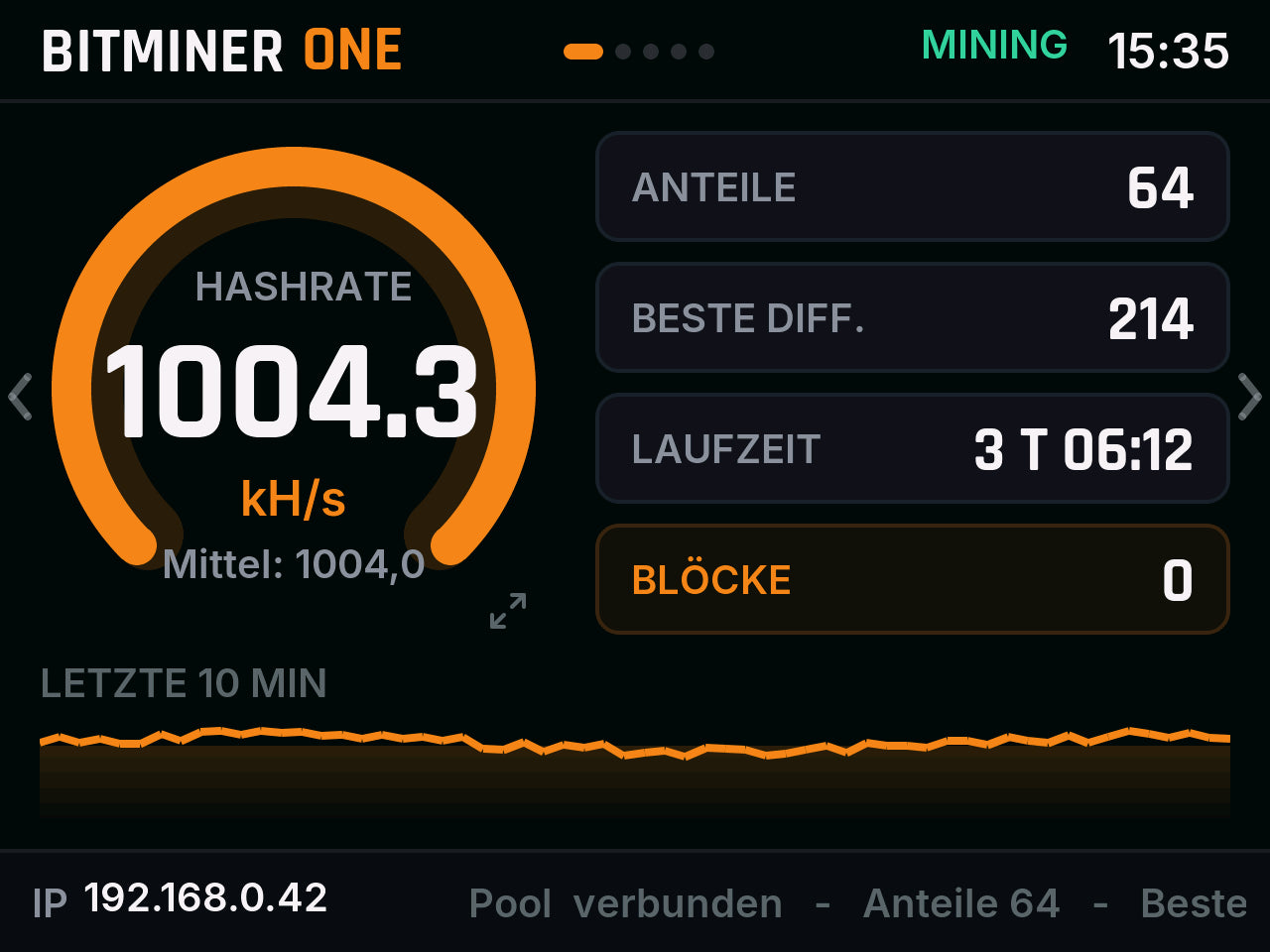
The first accepted share may take time, depending on pool difficulty and hashrate. Zero shares immediately after startup do not alone indicate a fault. Solo mining does not pay for every share; finding your own block is very rare.
Explore the app and your display.
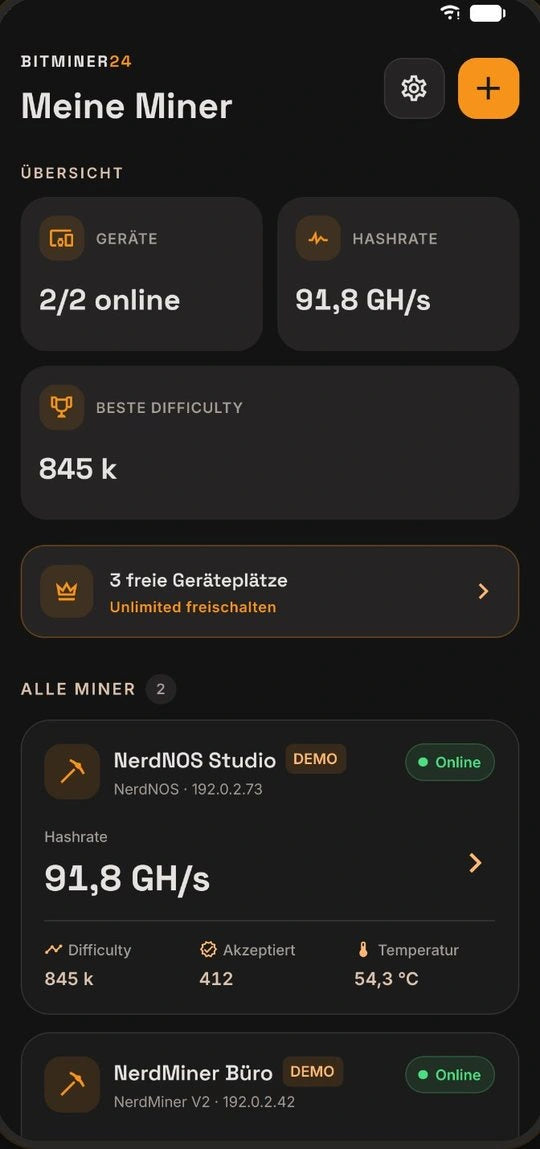
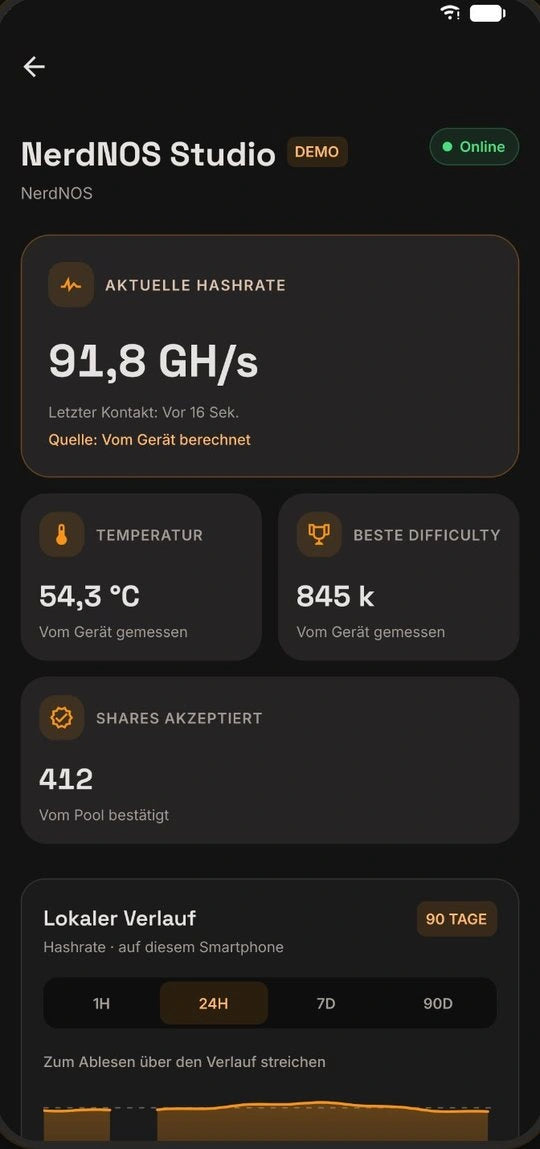
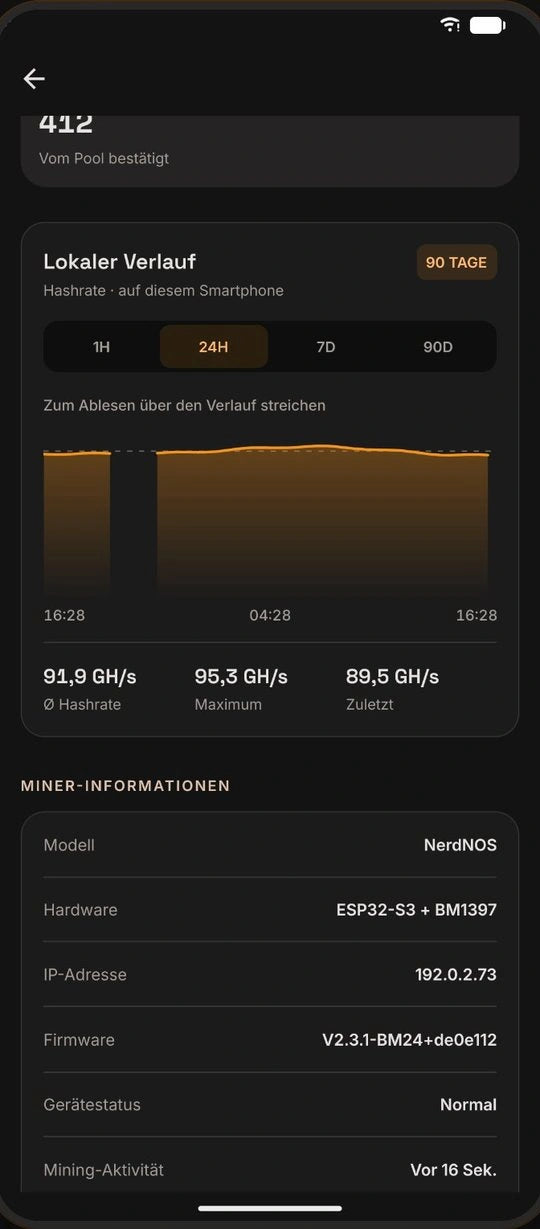
For your BitMiner One, explore touch views, mining status and app connectivity. Available app features depend on the final firmware contract.
Screenshots show the app with demo devices, not live measurements. Individual fields and features depend on model, firmware and app version.
Alternative: setup via Wi-Fi in the browser
Connect your phone to the exact setup Wi-Fi named on the display and use its displayed credentials. “No internet” is normal on this local network. If the portal does not open automatically, visit http://192.168.4.1.
Enter home Wi-Fi, password and your Bitcoin address. After saving, reconnect your phone to home Wi-Fi. The setup address is not necessarily the device’s later network address.
Check software for your modelBitMiner One specifics
- Touch display: 2.8 inches, operated by touch. A touch stylus is included.
- Stand: place the One securely on its stand with some room for airflow.
- Setup: via the BitMiner24 app over Bluetooth. Without the app: join the setup Wi-Fi
BitMinerOne-Setup, the code on the display is the password, then open192.168.4.1in a browser. - Reopen setup: press the screen for about 2 seconds, then hold “Einrichten” for about 3 seconds. Factory reset is a separate action.
- Power: USB-C with 5 V; a power adapter is not included.
Which firmware do I have?
Where the One shows its firmware version will be added with the final firmware. Until then the software page with device selection helps.
Error messages and what they mean
The exact messages of the final One firmware will be added with the release. Common cases are answered in the help below.
If a step gets stuck.
The app cannot find my miner. What should I check?
- Check the display: initial Bluetooth pairing requires setup mode. A configured miner may already be mining.
- Enable Bluetooth and grant the required app permissions. Keep the phone near the miner.
- Identify your own device by name. A configured device is discovered on the same reachable home network.
Guest-network isolation can prevent local discovery. Try the main home network first.
My device code is rejected.
Use the code on your own display, not the example in this guide or your Wi-Fi password. Check similar-looking characters and the format requested by the app.
A factory reset may change the device identity and code. Pair again using the new displayed code.
My home Wi-Fi is missing.
- Enable the router’s 2.4 GHz band. The miner cannot use a 5 GHz-only network.
- Try setup close to the router, then scan again.
- For hidden networks, check manual entry in your app and firmware version.
A shared 2.4/5 GHz network name is possible. The phone may use 5 GHz if both devices can reach each other locally.
Wi-Fi search returns after saving.
Allow the expected restart to finish. If searching continues, check the network name and password, including capital letters, special characters and spaces. Check range and whether the router accepts new devices.
Reopen setup to correct settings. A factory reset is usually not the first troubleshooting step.
Wi-Fi is connected but the pool is offline.
Wi-Fi and pool connections are separate. Check internet access, then the pool host, port and compatible public Bitcoin address. Allow time to reconnect.
For a custom pool, check its availability and supported hardware. Repeated restarts do not replace diagnosis.
Hashrate fluctuates and shares remain at zero.
Review the history rather than one instant. Averages need time after startup. Time to the first accepted share depends on computing power and pool difficulty. Zero shares immediately after startup do not alone indicate a fault.
Check power, Wi-Fi and pool status together. The device’s displayed rate and a pool estimate do not cover identical time windows.
How do I reopen setup without erasing everything?
In the One firmware shown here, hold the screen for about 2 seconds, then hold “Einrichten” for about 3 seconds. Factory reset is a separate action.
Older interfaces follow the “Older firmware” section. Record settings before any reset.
The display is dark. Is mining stopped?
Check power and cable first. A dark display may still leave mining active; check the app. On V2, the first button press wakes the display.
Use a suitable 5 V supply. An update requires a data cable even if a charge-only cable powers the device.
What should I include when contacting support?
Include the model, installed firmware, phone/OS and the step that fails. A display photo, exact error and Wi-Fi/pool connection status help.
Do not send recovery words, private keys, Wi-Fi passwords or device codes. Redact credentials in screenshots.


