Short answer
Fixing Wi-Fi problems on the Nerdminer V2
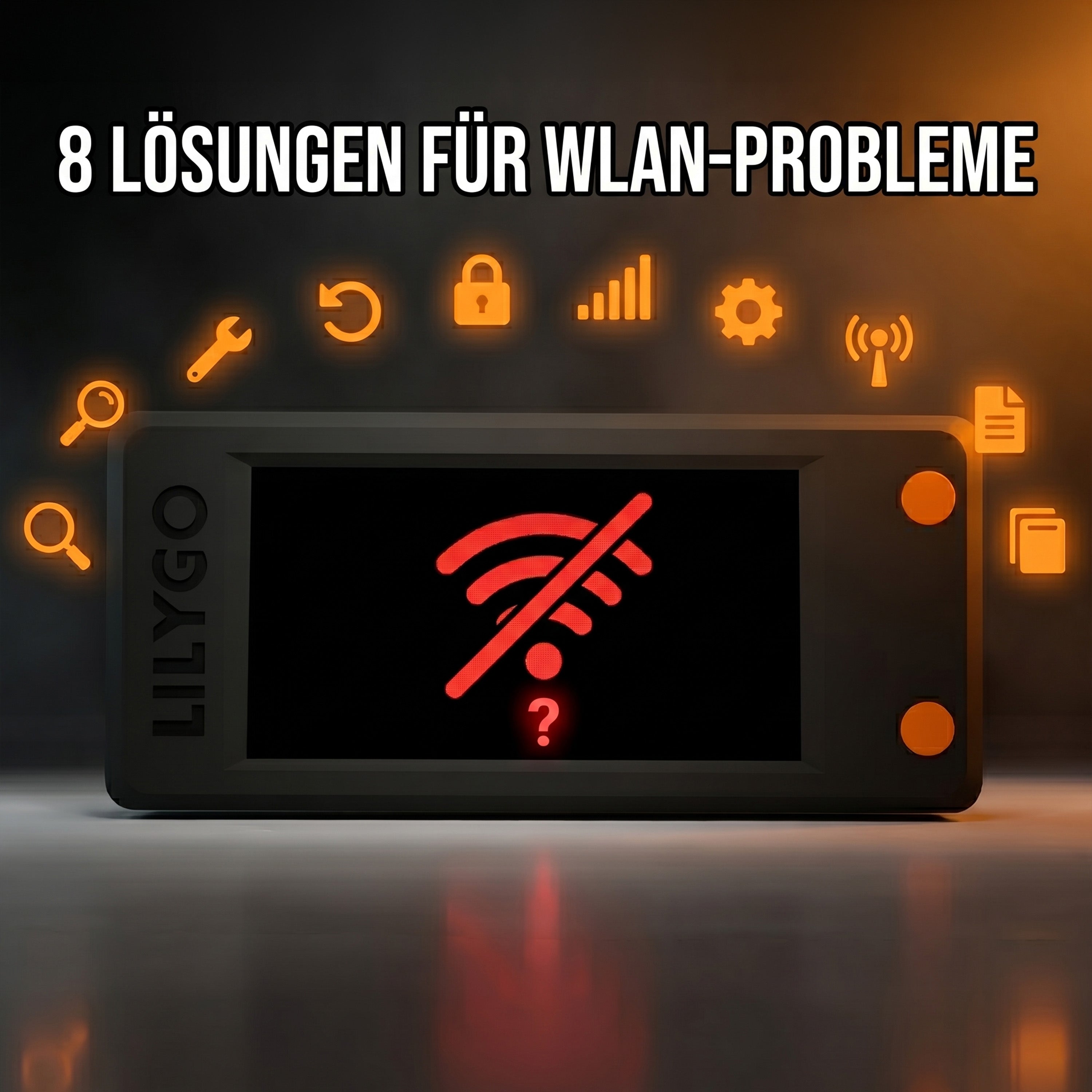
95 % of all Wi-Fi problems have one of three causes: the router does not broadcast 2.4 GHz separately (the Nerdminer cannot do 5 GHz), the network runs in WPA3-only mode instead of WPA2, or the firmware is out of date. The quick diagnosis table takes you from your symptom straight to the fix. Everything here applies to the Nerdminer V2 and equally to the NerdNOS.
"My Nerdminer cannot find the Wi-Fi", "it connects and drops out again immediately", "the display says 'WLAN connecting' and nothing happens" — these are the most common problems Nerdminer V2 buyers hit in the first few hours. The good news: 95 % of Wi-Fi problems are solved by one of eight standard fixes. This troubleshooting guide walks you through every cause systematically, from the most common (5 GHz instead of 2.4 GHz) to the exotic (DHCP lease problems).
Quick diagnosis: which symptom do you have?
| Symptom | Most likely cause | Fix in section |
|---|---|---|
| My network does not appear in the list at all | 5 GHz instead of 2.4 GHz | Fix 1 |
| Connects, then disconnects immediately | WPA3-only or outdated firmware | Fix 2 + 3 |
| Display stays on "Connecting…" | Wrong password or MAC filter | Fix 4 |
| Device starts but no setup network appears | Configuration reset needed | Fix 5 |
| Connects but no hash rate | Pool or DNS problem | Fix 6 |
| Wi-Fi drops out regularly | Weak signal or reconnect bug | Fix 7 + 8 |
Fix 1: make sure you have 2.4 GHz (the most common cause, ~60 % of cases)
The Nerdminer V2 (and the NerdNOS) speaks 2.4 GHz Wi-Fi only. Modern mesh routers (Google Nest, Amazon Eero, TP-Link Deco) and high-end FritzBoxes broadcast both 2.4 and 5 GHz under the same name, and the Nerdminer finds no 2.4 GHz signal because band steering takes over.
The fix: enable a separate 2.4 GHz network with its own name in the router menu. Exactly how depends on the router:
- FritzBox: WLAN → Funknetz → turn off "Bandsteuerung". Detailed FritzBox guide
- Speedport (Telekom): WLAN-Grundeinstellungen → enable "WLAN-Name (SSID) für 2,4 und 5 GHz separat"
- Vodafone Easybox: Erweiterte Einstellungen → WLAN → turn off band steering
- Google Nest WiFi / Eero / Deco: look for "2.4 GHz only mode" or "legacy devices" in the app
- UniFi / TP-Link Omada: create a separate 2.4 GHz network as a second SSID in the controller
Fix 2: force WPA2 (no WPA3-only)
The Nerdminer V2 supports WPA2 but not WPA3. If your router is set to "WPA3 only" (the default on some very recent devices), the Nerdminer cannot connect even when it finds the 2.4 GHz network.
The fix: set the wireless security mode to WPA2 or "WPA2 + WPA3 mixed mode" in the router. Do not use pure WPA3 modes.
Fix 3: update the firmware
Older Nerdminer firmware versions (before 1.8.3) had bugs in the Wi-Fi stack that caused random disconnects. If you get regular dropouts and nothing else helps:
- Install the current firmware, 1.8.3, with the web flasher
- Enter the Wi-Fi and bitcoin address configuration again
- Watch it for 24 hours; firmware 1.8.3 should produce essentially no disconnects
Detailed instructions: the firmware update for the Nerdminer V2.
When you re-enter the bitcoin address
After a firmware update you have to enter the bitcoin address your mining rewards go to again. Mislaid it, or do not have one yet? We recommend a free account at eToro (EU regulated), where you'll find your receive address in the eToro wallet. Prefer a wallet that only you control? Then Tangem, 10% off through our link. Either way, copy the receiving address straight into the Nerdminer.
Get a bitcoin address at eToro →eToro risk warning: Your capital is at risk. Crypto assets are highly volatile, other fees and taxes may apply.
Fix 4: check the password, MAC filter and device limit
Three frequently overlooked points:
- Wrong Wi-Fi password: the most common mistake. Typos in special characters or a double space are classics. Verify the password by typing it on a phone first, then enter it on the Nerdminer.
- MAC filtering in the router: if you keep a whitelist of allowed MAC addresses, you have to allow the Nerdminer's MAC explicitly (it is shown on the configuration screen).
- Device limit reached: some routers, provider models in particular, cap the number of simultaneously connected devices (often 16 or 32). With a lot of IoT devices that can be full.
Fix 5: force setup mode (configuration reset)
If your Nerdminer does not open its setup access point (NerdMinerAP), it is probably still holding old configuration data. How to force a reset:
- Switch the Nerdminer on and wait until the display responds
- In the OLED menu navigate to "Reset Config" or "Forget WiFi"
- Confirm; the device restarts
- The
NerdMinerAPnetwork should appear within 30 seconds
If your display has no reset menu: unplug the USB cable, hold the boot button on the ESP32 board and plug USB back in. The device boots into setup mode.
Fix 6: check DNS and the pool connection
If the Nerdminer is connected to Wi-Fi (the display shows a green indicator) but produces no hash rate, the problem is not the Wi-Fi but the pool connection. Possible causes:
-
DNS resolution blocked: some providers and firewalls block certain DNS queries. Set the router's DNS server to
8.8.8.8(Google) or1.1.1.1(Cloudflare). -
Pool URL misspelled:
public-pool.io(not publicpool.io). Typos when entering it by hand are common. -
Stratum port blocked: some corporate firewalls and restrictive providers block port
21496(public-pool.io). Open the port or use another pool. - Pool server temporarily down: public-pool.io has short maintenance windows every few months. Check the pool's Discord or Twitter.
Fix 7: improve the signal
A weak Wi-Fi signal causes reconnects, slow initial connections and occasional display glitches. The optimal position:
- No more than 8 to 10 metres between the Nerdminer and the router (line of sight, no walls)
- No more than 1 to 2 walls in between
- Not inside a closed metal cabinet, which shields the signal
- Not right next to a microwave (it interferes on 2.4 GHz)
- Not on top of a cordless phone base (DECT devices disturb 2.4 GHz)
If your chosen spot has a poor signal, a simple 2.4 GHz Wi-Fi repeater (€15-25) helps.
Fix 8: the reconnect bug on older firmware
If the Nerdminer loses its Wi-Fi connection once (after a power cut or a router restart, say) and never reconnects, you are hitting the old reconnect loop bug. Symptoms: the display shows "Connecting…" permanently and no connection is established.
The fix: update the firmware to 1.8.3. The bug is fully resolved there; the reconnect mechanism now performs a hard reset after 5 failed attempts instead of hanging in an endless loop.
What if nothing helps?
If you have worked through all 8 fixes and your Nerdminer V2 still will not connect, these are the remaining options:
- Replace the device: in very rare cases the Wi-Fi module on the ESP32-S3 board is faulty. Within the warranty period your retailer is obliged to send a replacement.
- Test with a phone hotspot: if the Nerdminer works on a 2.4 GHz phone hotspot, the problem is definitely your home router. Guide: the Nerdminer on a phone hotspot.
- Try another router: test at a friend's or a neighbour's. If it works there, your home router is the problem.
Common questions about Wi-Fi problems on the Nerdminer V2
My phone and laptop connect to the Wi-Fi without trouble. Why not the Nerdminer?
Because phones and laptops support 5 GHz and automatically pick the stronger 5 GHz band. The Nerdminer V2 only has a 2.4 GHz radio. If your router broadcasts both bands under one name, the Nerdminer sees nothing it can connect to.
What does the red LED on the Nerdminer V2 mean during Wi-Fi problems?
A solid red LED usually means "no Wi-Fi connected". A flashing red LED means "connecting or attempting to reconnect".
Can I store several Wi-Fi networks on the Nerdminer?
No. The Nerdminer V2 keeps only one Wi-Fi profile at a time. If you want to move the device between home Wi-Fi and a hotspot, you have to reconfigure the Wi-Fi each time.
Does the Nerdminer need to be in the DMZ or have port forwarding?
No. The Nerdminer only makes outbound connections to the solo pool. Inbound connections are not needed. You need neither a DMZ nor port forwarding.
How far does 2.4 GHz Wi-Fi reach for a Nerdminer?
In a typical flat, 2 to 3 rooms with 1 to 2 walls in between. In houses with reinforced concrete ceilings the range can be much shorter, and a repeater or a second access point helps.
Read on
No Nerdminer yet?
Both devices speak 2.4 GHz Wi-Fi and are set up in minutes. The Nerdminer V2 is the affordable way into the bitcoin solo lottery, the NerdNOS adds real ASIC hash rate. Both from a German specialist:
To the Nerdminer V2 → To the NerdNOS → Ships from Germany · support from GermanyeToro risk warning (advertising): eToro is a multi-asset platform which offers both investing in stocks and trading CFDs. CFDs are complex instruments and come with a high risk of losing money rapidly due to leverage. 50% of retail investor accounts lose money when trading CFDs with this provider. You should consider whether you understand how CFDs work and whether you can afford to take the high risk of losing your money. Crypto investments are high risk and highly volatile. Crypto trading at eToro (Europe) Ltd. is provided by DLT Finance, crypto custody by Tangany. Taxes may apply. Your capital is at risk. We earn a commission on accounts opened through the eToro links on this page.


Teilen: