
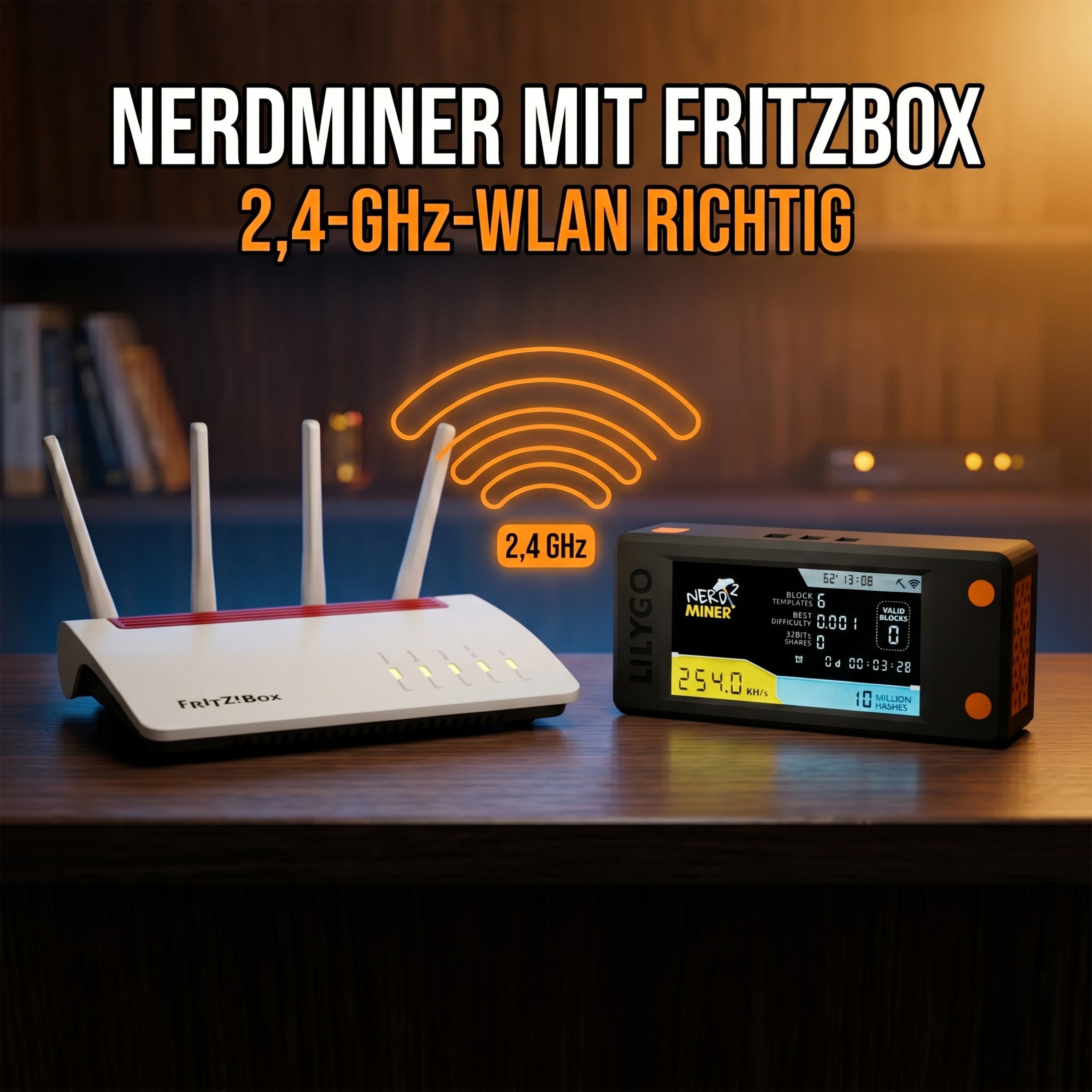
Connecting Nerdminer V2 to FritzBox — Setting up 2.4 GHz Wi-Fi correctly
FritzBoxes are the most common routers in German households — and at the same time, the most frequent stumbling block when setting up the Nerdminer V2. The reason: modern FritzBox models (7590, 7530, 6660, etc.) are configured "intelligently" by default, so that 2.4 GHz and 5 GHz bands run under one name. This is practical for most devices — but not for the Nerdminer V2, which only communicates via 2.4 GHz. This guide shows you step-by-step how to configure your FritzBox so that your Nerdminer V2 connects reliably.
Why doesn't the Nerdminer V2 work directly with the FritzBox?
This is not due to the FritzBox, but to the ESP32-S3 chip in the Nerdminer. For cost reasons, this chip only has a 2.4 GHz Wi-Fi module. 5 GHz, Wi-Fi 5, Wi-Fi 6, and all modern standards are not supported. If your FritzBox broadcasts both a 2.4 GHz and a 5 GHz signal under the Wi-Fi name "FRITZ!Box 7590 XY", the Nerdminer searches for this name but does not find a 2.4 GHz signal — and gives up.
The solution is simple: you need to tell the FritzBox to broadcast a separate 2.4 GHz network, with its own name and (ideally) its own password. Then the Nerdminer will find this network and connect without problems.
Step 1: Open the FritzBox interface
You need access to the FritzBox interface. Open the following address in a browser:
-
fritz.box— always works within the FritzBox network - or the IP
192.168.178.1— if fritz.box does not respond
Log in with your FritzBox password. The password is factory-set on the bottom or back of the FritzBox. If you have changed it and forgotten it, there is a reset button (factory settings).
Step 2: Access the Wi-Fi radio network
In the FritzBox menu, navigate to:
- WLAN (left menu)
- Radio Network
Here you will see an overview of your Wi-Fi settings. By default, you will find an option "Common Wi-Fi name for 2.4 and 5 GHz" or similar.
Step 3: Broadcast 2.4 GHz band as a separate network
There are two possible ways, depending on the FritzOS version:
Option A: Disable band steering (recommended for FritzOS 7.x and newer)
- In the menu WLAN → Radio Network, scroll down.
- Find the item "Use band steering" or "Both frequency bands under one name".
- Uncheck the box.
- Now two separate configuration areas will appear: one for 2.4 GHz and one for 5 GHz.
- In the 2.4 GHz area, assign a different name, e.g.,
FRITZ!Box-2.4GHzorNerdMiner-WLAN. - If necessary, assign your own password (or keep the same as for 5 GHz).
- Save. The FritzBox will update the Wi-Fi settings — a brief interruption may occur.
Option B: Wi-Fi Mesh function in FritzOS
In FritzOS 7.50 and newer, band steering is part of the Mesh system. In this case:
- Open WLAN → Radio Network → Radio Channel.
- Manually set the 2.4 GHz channel (e.g., channel 6 or channel 11), not "auto".
- In the WLAN → Mesh menu, uncheck the box "Both bands under one name".
- Save.
The exact menu structure varies depending on the FritzBox model and FritzOS version. If you cannot find the item, the search function in the upper right of the FritzBox interface can help — enter "2.4 GHz" or "Band Steering".
Step 4: Connect Nerdminer V2 to the 2.4 GHz network
Once the FritzBox broadcasts the separate 2.4 GHz network, your Nerdminer V2 can connect to it:
- Turn on the Nerdminer and connect to the NerdMinerAP setup Wi-Fi (smartphone or laptop).
- Open
192.168.4.1in your browser. - Your new 2.4 GHz network should now appear in the Wi-Fi list (e.g.,
FRITZ!Box-2.4GHz). - Select it, enter the password, enter your Bitcoin address, and save.
- The Nerdminer will restart and connect. Within 1-2 minutes, the display will show the hashrate.
What to do if the FritzBox does not allow 2.4 GHz separation?
Some older FritzBox models or simplified provider versions (e.g., FritzBoxes branded by 1&1 or Vodafone) have the band steering option permanently activated and cannot be switched off. In this case, you have three alternatives:
- Update FritzBox to the latest FritzOS. Provider-branded FritzBoxes often have old firmware. An update sometimes brings the missing option.
- Use guest Wi-Fi. The guest Wi-Fi on many FritzBoxes can be set exclusively to 2.4 GHz — and the Nerdminer can use it as a 2.4 GHz network. Instructions: Setting up Nerdminer in guest Wi-Fi.
- Add a second Wi-Fi repeater or access point. A simple 2.4 GHz repeater (€10-30) creates a separate 2.4 GHz network with which the Nerdminer works without problems.
Common Problems and Solutions
"Nerdminer does not find the 2.4 GHz network in the list"
Possible causes:
- The separation was not saved. Clear browser cache and check settings.
- The Wi-Fi network is hidden ("Hidden SSID"). Manually enter the SSID name in the Nerdminer setup.
- The Nerdminer is out of range. Move it closer to the FritzBox.
"Nerdminer connects but immediately loses connection"
This is often due to WPA3-only encryption. The Nerdminer V2 only supports WPA2. In the FritzBox settings, select WPA2 or "WPA2 + WPA3" as the security mode.
"FritzBox requires PIN for every new Wi-Fi device"
In the FritzBox menu under WLAN → Radio Network, deactivate the option "WPS active" or set the option "Allow new Wi-Fi devices" to "Always allow".
"Wi-Fi name contains special characters, Nerdminer cannot connect"
Some Nerdminer firmware versions have problems with umlauts (ä, ö, ü) or special characters (&, %, /) in the Wi-Fi name. Solution: Give the 2.4 GHz network a pure ASCII name (e.g., NerdMiner-Net).
"FritzBox 7490 / 7430 — where is band steering?"
On older models, "band steering" is often not called that, but is labeled as "Same name for 2.4 and 5 GHz". Look for this option in the menu WLAN → Radio Network and uncheck the box.
Security Notes for FritzBox Setup
- WPA2 minimum. Never use "Open" or "WEP" for your home network.
- Do not name SSID as home address. Instead of "Müller_München_Hauptstr_42", use "FRITZ-2.4" or "NerdNet".
- Wi-Fi password at least 12 characters. Do not use the default password on the bottom of the FritzBox, which is found in every household guide.
- Guest Wi-Fi for IoT devices. If you have several smart home devices, use a separate guest network — this protects your main network if an IoT device is compromised.
Frequently Asked Questions about FritzBox Configuration
Which FritzBox models support the separation of 2.4 and 5 GHz?
Practically all current models: 7590, 7590 AX, 7530 AX, 7510, 6660, 6890 LTE, 7510. Older models from FritzBox 7490 (with current FritzOS) also offer the option. Pure 2.4 GHz models (3490 etc.) are not affected.
Will I slow down my Wi-Fi if I broadcast 2.4 GHz separately?
No. The 2.4 GHz band already runs separately from the 5 GHz band — the FritzBox only bundles them cosmetically under one name. The separation does not affect performance.
Do I have to set up all other devices again after the change?
No. If you only rename the 2.4 GHz band and leave the 5 GHz band untouched, all existing devices will continue to work. They will automatically connect to the 5 GHz network under the old name.
What happens if I operate multiple Nerdminers?
They all connect to the same 2.4 GHz network. The FritzBox is designed for around 20-30 simultaneous Wi-Fi connections — more than sufficient for any hobby setup.
What is the range of the 2.4 GHz network?
2.4 GHz has a greater range and penetrates walls better than 5 GHz. In typical apartments, distances of 2-3 rooms can be bridged without problems.
Further Reading
- Nerdminer V2 Setup — Step-by-step with screenshots
- General Wi-Fi Troubleshooting for Nerdminer V2
- Nerdminer in Guest Wi-Fi — Security Setup
- Operating Nerdminer with Mobile Hotspot
- Firmware Update for More Stability
Don't have a Nerdminer yet?
Buy Nerdminer V2 — Plug & Play in 3 minutes
To the Nerdminer V2 in the shop →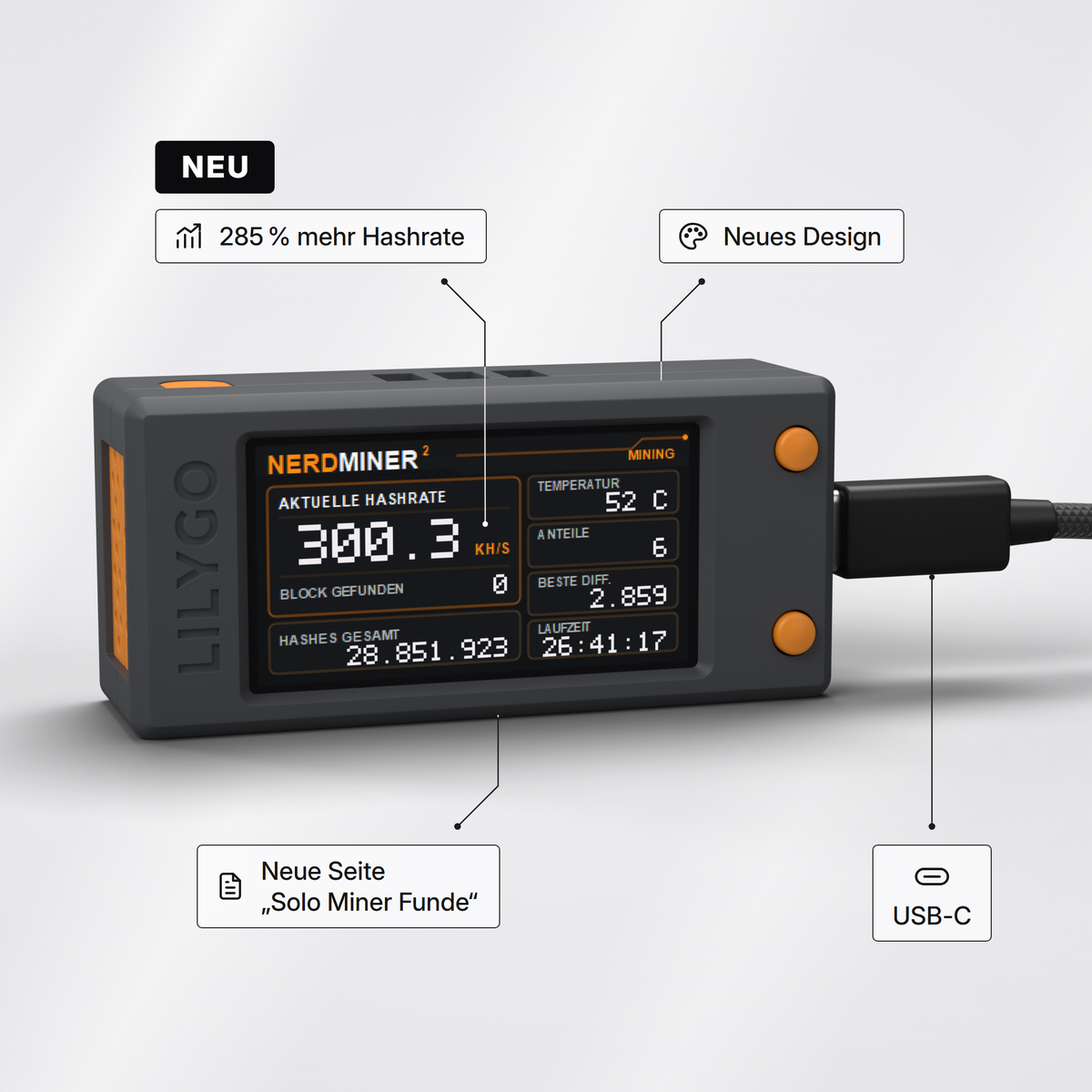


Teilen: