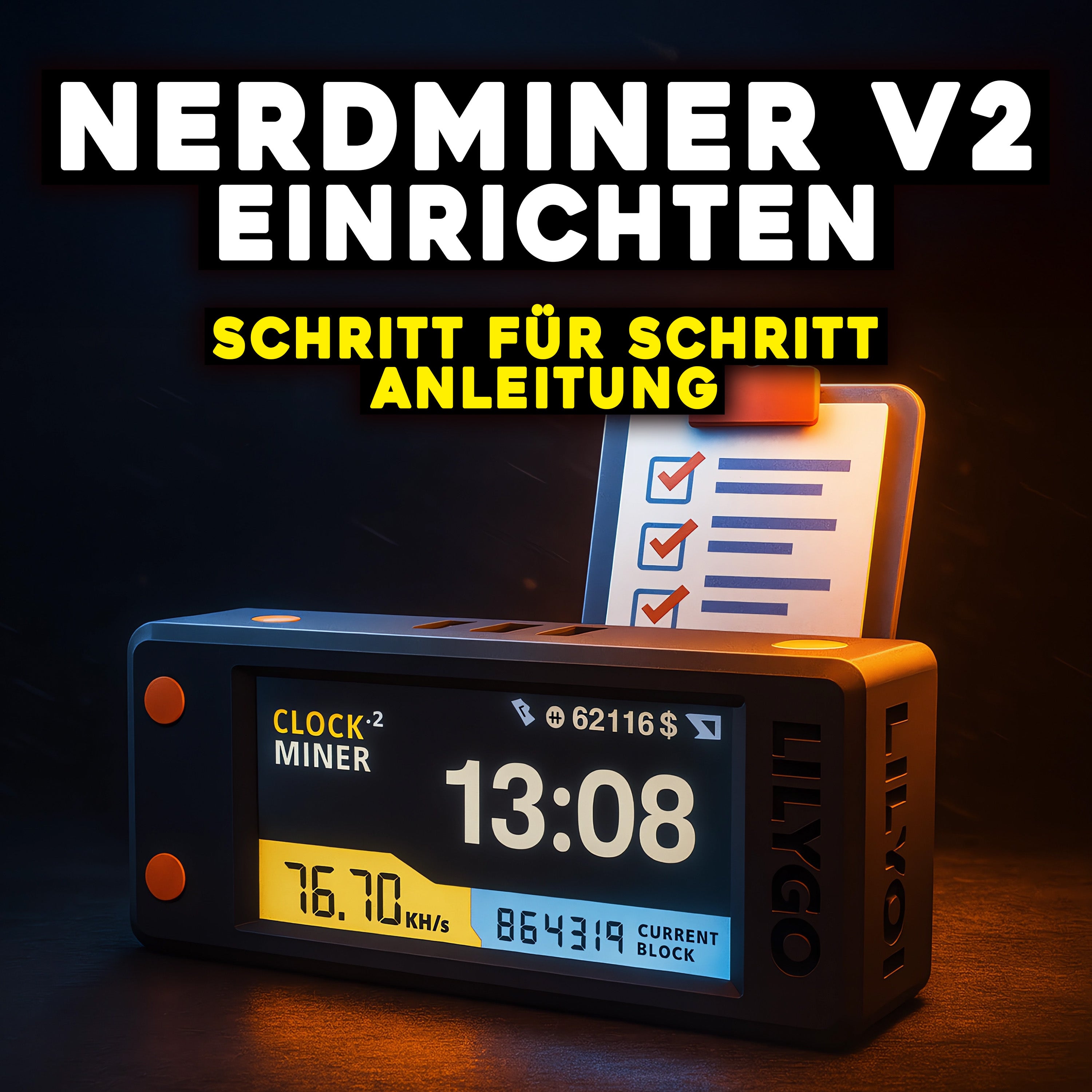
Setting up Nerdminer V2 2026 — Step-by-step guide in 3 minutes
The Nerdminer V2 is one of the few Bitcoin miners that are truly "Plug and Play". In this guide, we'll show you in 4 steps how to set it up, connect it to your Wi-Fi, add your Bitcoin address, and start solo mining within 3 minutes. No software installation, no terminal, no prior knowledge required.
What you need
- Nerdminer V2 (pre-configured with Firmware 1.8.3 recommended)
- USB-C power adapter — any smartphone charger will work
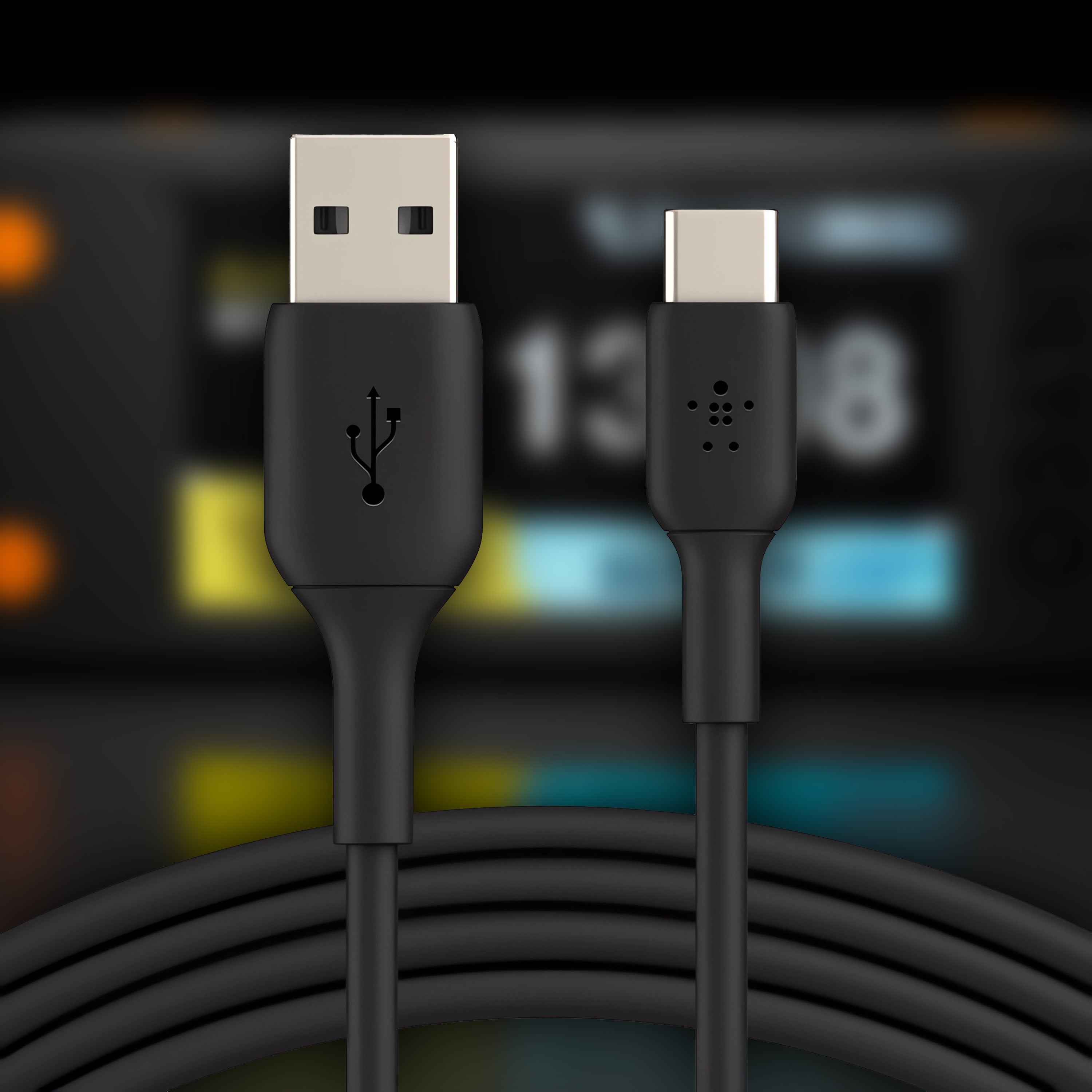
- Data-capable USB-C cable — charge-only cables won't work for future updates
- Smartphone, tablet, or laptop — for Wi-Fi configuration
- 2.4 GHz Wi-Fi — the Nerdminer V2 does not support 5 GHz (FritzBox guide | Wi-Fi Troubleshooting)
- Bitcoin wallet address — SegWit recommended (starts with bc1q...), not a Taproot address (bc1p...)
Step 1: Power on Nerdminer and connect to setup Wi-Fi
Plug the USB-C cable into the Nerdminer V2 and connect it to a power adapter or USB port. The device will start within a few seconds and display a QR code on the screen.

How to connect:
- Scan QR code — use your smartphone camera to scan the QR code on the Nerdminer display. Your smartphone will automatically connect to the setup Wi-Fi ("NerdMinerAP").
- Alternatively, manually: In your device's Wi-Fi settings, search for the "NerdMinerAP" network and connect manually.
Important: The Nerdminer creates its own temporary Wi-Fi network. This network has no internet — it is only for configuration. It will disappear after setup.
Step 2: Open the configuration page

After connecting to the NerdMinerAP network, you will usually be automatically redirected to the configuration page (Captive Portal).
If not: Open a browser and type 192.168.4.1 into the address bar. You will now see the Nerdminer's configuration interface.
Step 3: Configure Wi-Fi, Bitcoin address, and pool
eToro risk warning: Your capital is at risk. Crypto assets are highly volatile, other fees and taxes may apply.

In the configuration interface, you enter three things:
- Select your home Wi-Fi. Click on "Configure Wi-Fi". Your 2.4 GHz network should appear in the list. Select it and enter the password.
- Enter Bitcoin wallet address. This is where your SegWit address goes (starts with bc1q...). This is the address to which a potential block reward will be paid.
- Check pool settings. By default, public-pool.io is pre-set as the solo pool — the optimal choice for most users (0% fee). Only change it if you want to use a different pool (Pool change guide).
Common sources of error in this step:
- 5 GHz network: If your Wi-Fi does not appear in the list, your router is probably only broadcasting on 5 GHz. Solution: Activate a separate 2.4 GHz band in the router. (FritzBox | General Wi-Fi Troubleshooting)
- Taproot address (bc1p...): Although accepted, it does not work correctly with most solo pools. Always use SegWit (bc1q...).
- Typo in Wi-Fi password: The most common source of error. Double-check, especially for special characters.
No Bitcoin wallet yet? Download a free software wallet (e.g., BlueWallet for iOS/Android or Electrum for desktop). You can generate a SegWit address in 2 minutes. For long-term security, we recommend a hardware wallet like BitBox02 or Ledger Nano.
Step 4: Save and start
After you have entered Wi-Fi and Bitcoin address:
- Click on "Save".
- The Nerdminer will restart automatically.
- Within 30-90 seconds, it will connect to your Wi-Fi and start mining.
- The display will now show the current hashrate — expected to be 230-250 KH/s with firmware 1.8.3.
Check: If the display shows a hashrate above 200 KH/s and "Connected" or the pool name — congratulations, your Nerdminer V2 is running. It is now participating in the Bitcoin network as a full-fledged solo miner.
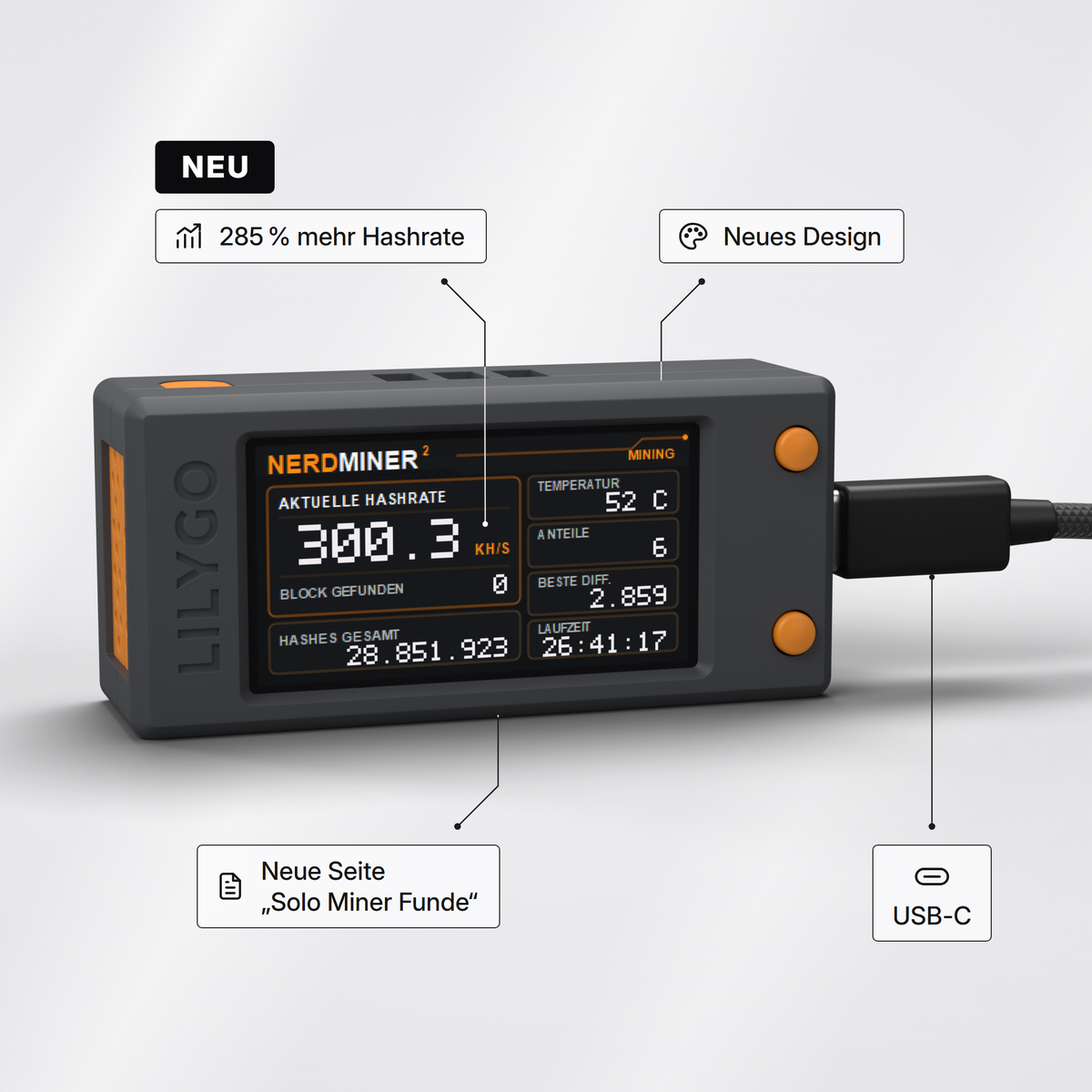
The Nerdminer V2 buttons

The Nerdminer V2 has three buttons:
| Button | Short click | Long press (5 sec.) |
|---|---|---|
| Top button | Change display mode (Hashrate, Price, Stats) | Restart device + reset configuration |
| Middle button | Display on/off | — |
| Bottom button | Restart device | — |

Tip: Double-click the middle button to rotate the display orientation by 180°. Useful if you set up the Nerdminer upside down.
What does the display show?
The OLED display switches between different views depending on clicking the top button:
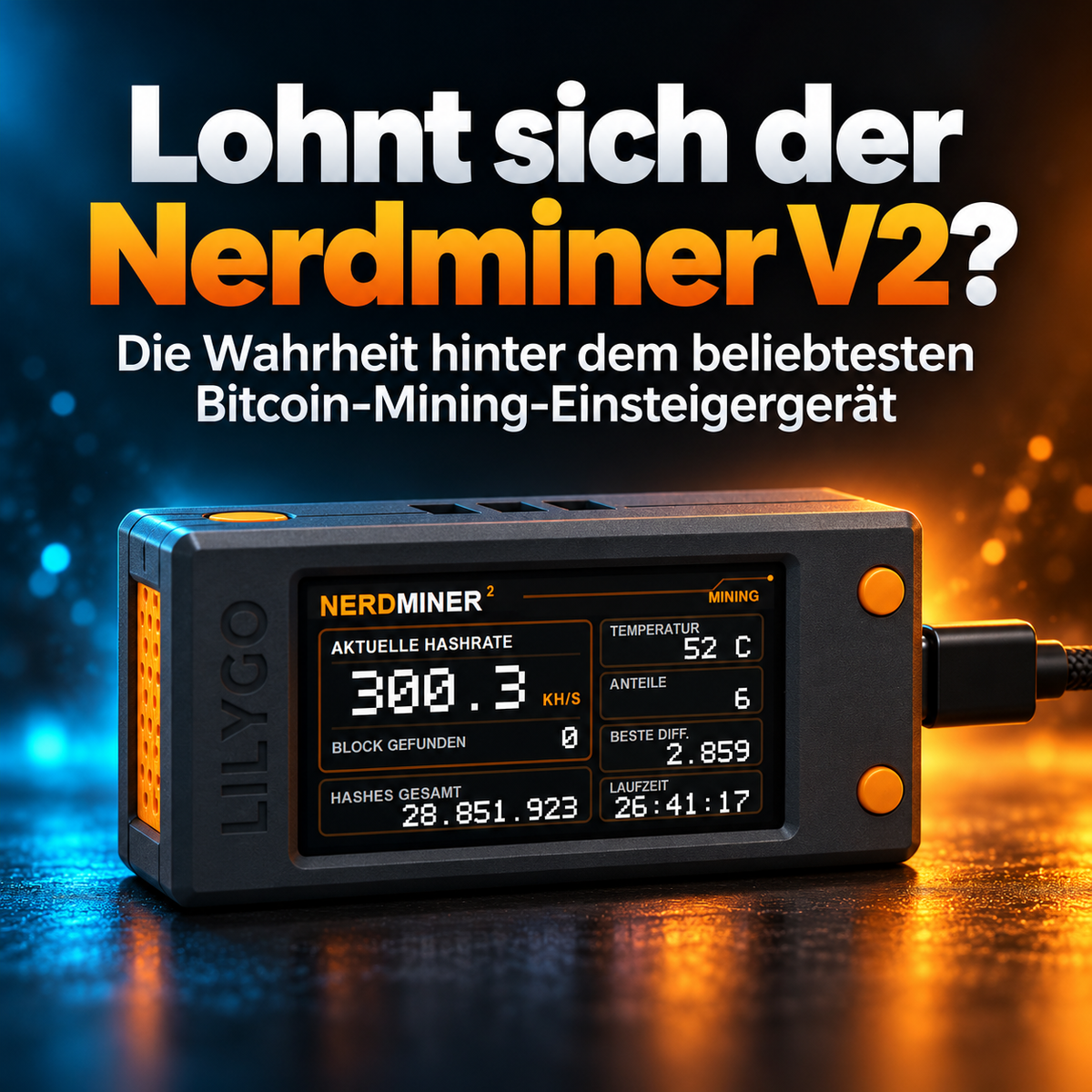
- KH/s: Current hashrate (Target: 230-250 KH/s with Firmware 1.8.3)
- Block Templates: Number of block templates received from the pool
- Million Hashes: Total number of hashes tested since the last start
- Valid Blocks: Valid blocks found (permanently 0 for most users)
- Current Block: Current block height of the Bitcoin blockchain
- EH/s: Total hashrate of the Bitcoin network (currently around 620 EH/s)
- Difficulty: Current mining difficulty
Troubleshooting — the most common problems
Hashrate shows 0.00 KH/s
Cause: No Bitcoin wallet address entered or invalid address (e.g., Taproot bc1p...).
Solution: Press and hold the top button for 5 seconds → device resets → run through setup again and enter SegWit address (bc1q...).
Wi-Fi does not connect
Most common cause: Your router only broadcasts on 5 GHz. The Nerdminer V2 requires 2.4 GHz.
Solution: Activate a separate 2.4 GHz Wi-Fi in the router menu. Router-specific guides:
- FritzBox: Separate 2.4 GHz band
- Alternative: Use guest Wi-Fi
- General Wi-Fi troubleshooting guide (8 solutions)
Hashrate below 200 KH/s
Cause: Outdated firmware (before version 1.8.3).
Solution: Update firmware to 1.8.3 — typically yields +30-40% hashrate. Firmware update guide.
Device starts, but only shows "NerdMinerAP" permanently
Cause: Wi-Fi configuration was not saved or the saved Wi-Fi is unreachable.
Solution: Reconnect to NerdMinerAP and repeat setup. Check if Wi-Fi is broadcasting on 2.4 GHz and the password is correct.
Display shows hashrate, but "Pool: disconnected"
Cause: Pool URL unreachable (DNS problem, firewall, or pool maintenance).
Solution: Restart router, set DNS to 8.8.8.8 or 1.1.1.1. If public-pool.io is down, temporarily switch to solo.ckpool.org (Port 3333). Pool change guide.
After setup — next steps
Your Nerdminer V2 is now running 24/7 as a solo miner. Here are the recommended next steps:
- Check firmware. If your device shows less than 230 KH/s, an update to 1.8.3 is worthwhile — Firmware update guide.
-
Access pool dashboard. At
https://web.public-pool.io/#/app/YOUR_BITCOIN_ADDRESS, you can see your active hashrate, accepted shares, and best difficulty live in your browser. - Understand what's happening. The Bitcoin Mining Beginner's Guide explains what hashrate, difficulty, and block reward technically mean.
- Calculate your chances. In the Solo Mining Calculator, you can calculate your statistical block probability.
Frequently Asked Questions
What is Bitcoin lottery mining?
With solo mining on a Nerdminer V2, you have a chance every 10 minutes to find a Bitcoin block and receive 3.125 BTC (~€190,000+). The probability per attempt is extremely low (~1:10 billion), but real. Documented cases exist. Details: The Bitcoin Lottery Explained.
Does the Nerdminer V2 come pre-installed?
Pre-configured devices with current firmware come mining-ready — you only need to enter your Wi-Fi and Bitcoin address. If your device shipped with older firmware, you can update for free: Firmware update guide.
Where can I connect the Nerdminer?
To any USB-C power adapter (smartphone charger), any USB port on a laptop, any power bank. The Nerdminer V2 consumes less than 1 Watt — less than a night light. Power consumption in detail.
How much power does the Nerdminer V2 consume?
Measured: 0.95 Watts average. Annual cost for German household electricity: €2.66. That's less than a USB charger in standby. Complete measurement data.
What happens if I unplug and replug the Nerdminer?
It automatically connects to the saved Wi-Fi and resumes mining. No reconfiguration needed. If you change Wi-Fi, you must repeat the setup once (press and hold top button for 5 seconds).
Can I use the Nerdminer V2 mobile?
Yes, with a smartphone hotspot (2.4 GHz). Data volume consumption: around 90 MB per month. Mobile mining guide.
Which Bitcoin addresses work?
Works: SegWit (bc1q...) and Legacy (1... or 3...). Does not work: Taproot (bc1p...) — not correctly processed by the solo pool.
Further guides
Your Nerdminer V2 is running — here are specialized guides for the next steps:
- Connecting Nerdminer to FritzBox — setting up 2.4 GHz Wi-Fi
- Nerdminer in guest Wi-Fi — security setup
- Solving Wi-Fi problems — 8 solutions for all connection symptoms
- Nerdminer with phone hotspot — mobile mining on the go
- Firmware update — to 1.8.3 for +40% hashrate
- Changing mining pool — configuring Custom Stratum
- Bitcoin Solo Mining Practice Guide
- Nerdminer V2 Review — 12 months of experience
eToro risk warning (advertising): eToro is a multi-asset platform which offers both investing in stocks and trading CFDs. CFDs are complex instruments and come with a high risk of losing money rapidly due to leverage. 50% of retail investor accounts lose money when trading CFDs with this provider. You should consider whether you understand how CFDs work and whether you can afford to take the high risk of losing your money. Crypto investments are high risk and highly volatile. Crypto trading at eToro (Europe) Ltd. is provided by DLT Finance, crypto custody by Tangany. Taxes may apply. Your capital is at risk. We earn a commission on accounts opened through the eToro links on this page.


Teilen: