
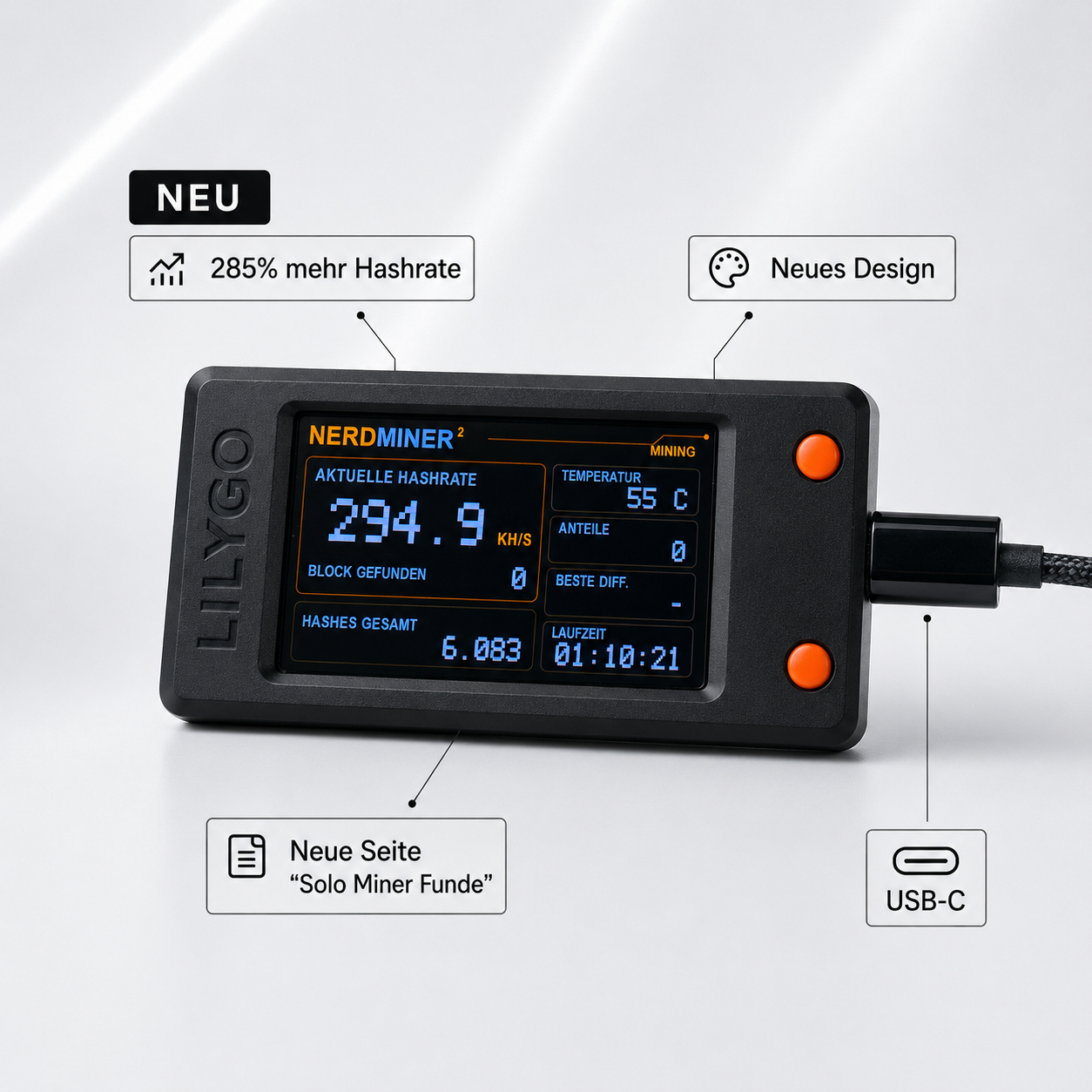
Since July 2026 the Nerdminer V2 runs our own firmware: the BitMiner24 Firmware 2.0. It is not a patch on the old version but a full rebuild on the current ESP-IDF 5.5, and it brings things this device never had before: a web dashboard on your home network, a solo block tracker, counters that survive a power cut, and a boot process that rolls itself back if an update goes wrong. This guide walks you through both update paths, explains what 2.0 actually does differently and how to avoid the common pitfalls. The easiest route takes less than three minutes and runs entirely in the browser.

The original NerdMiner firmware computes the entire SHA-256 in software. The 2.0 uses the hardware engine that is built into the ESP32-S3 and was there all along. On top of that you get the web dashboard, the solo tracker and persistent counters. With the browser flasher you are done in under three minutes. Flash Firmware 2.0
The 1.6.x and 1.7.x lines also suffered from more frequent WiFi drops and display glitches. Moving to 2.0 you skip not only the performance gap but everything that has been fixed since. The flasher overwrites any previous build cleanly, no intermediate step needed. Flash Firmware 2.0
Then there is nothing to do right now. The flasher becomes relevant again when we publish a new version. What 2.0 brings and how to reach the dashboard on your home network is covered in the features section below. New versions are announced on the release page on GitHub. View releases
Which firmware version is current? (as of 2026)
The current version is BitMiner24 Firmware 2.0.0, released in July 2026. It is the default in the browser flasher. Alongside it, the unmodified original 1.8.3 of the NerdMiner project remains available for anyone who prefers to stay on the upstream build. Switching works in both directions at any time.
The performance difference is not a trick, it comes from how the work is done. The original firmware computes SHA-256 in software on the CPU. The ESP32-S3 inside the Nerdminer V2 has a dedicated hardware engine for exactly that. The 2.0 uses it and lets the CPU only chip in on the side:
These numbers come from our own measurement log on the same device: 270.3 kH/s from the hardware engine plus roughly 30 kH/s from the software kernel, averaging 300.26 kH/s over a 55 second run. The full log, including every approach that provably made no difference, is public on GitHub.
What the BitMiner24 Firmware 2.0 does differently
Hashrate is only half the story. The real day-to-day difference is the set of features that simply were not there before:
-
Web dashboard on your home networkAll live values in the browser, no cable and no squinting at the display. Reachable at the IP shown on the device. Changes are protected by a device password.
-
Solo block trackerShows the latest solo find worldwide, the current block reward and the statistics behind it. No other Nerdminer firmware has this screen.
-
Rollback on boot failureThe firmware lives in two memory slots. If a new image fails to start cleanly, the device reverts the change on its own and boots the previous build.
-
Counters that survive the plugTotal runtime, accepted shares, best difficulty and confirmed block finds are kept after a power cut instead of starting from zero.
-
Sensible thermal controlWhen it gets warm, the controller throttles only the thermally inefficient software share. The efficient hardware engine keeps running. In operation the device sits at around 52 °C.
-
Readable crash diagnosticsIf something crashes, the device leaves a readable memory dump instead of a silent reboot. For support that means a cause instead of guesswork.
On top of that there is a setup portal with a WiFi picker and QR code, adjustable brightness and colours, a factory reset via long button press, and a time zone with correct daylight saving handling for Germany, Austria and Switzerland.
The six screens
- Minerhashrate, temperature, shares, best difficulty, runtime
- Clocklocal time, current block, bitcoin price
- Bitcoin networkglobal hashrate, halving, fees, difficulty
- Pricelarge price, block, time
- Solo trackerlatest solo find worldwide, reward, statistics
- SetupWiFi portal with a QR code to connect
A short press on the side button cycles through the screens. Hold it for four seconds to open setup, ten seconds for a factory reset. The second button toggles the display, a double click rotates it.
What you need before the update
-
Chrome, Edge, Brave or Opera on the desktop. The browser flasher uses the Web Serial API, which only exists in Chromium browsers. Firefox, Safari and mobile devices will not work.
-
A USB-C cable that carries data. Cheap charge-only cables transfer no data. If your computer does not detect the Nerdminer, swap the cable first.
-
Your WiFi name and password written down. Flashing wipes the configuration storage. You enter WiFi and bitcoin address once afterwards.
-
Your bitcoin address at hand. SegWit recommended, starting with bc1q..., not a Taproot address (bc1p...).
Method 1: the BitMiner24 browser flasher (recommended, no download)
The fastest and safest route is our own browser flasher. No esptool, no command line: plug in the USB cable, click the button, done. Flashing happens directly between your browser and the miner, with no cloud upload. By default it installs Firmware 2.0, and the unmodified 1.8.3 sits right below it on the same page.

How to flash in under 3 minutes
- Connect the Nerdminer to your computer. Use a USB-C cable that carries data and plug the Nerdminer straight into a USB port. No hub, no extension cable, no docking station in between.
- Open the flasher page. In a new tab in Chrome, Edge, Brave or Opera, open bitminer24.de/pages/firmware-update.
- Click "Verbinden & Flashen". The browser asks for the serial port. Pick the one your Nerdminer shows up on, usually "USB JTAG/serial debug unit" or "CP210x".
- Confirm and wait. The tool installs version 2.0.0. Leave "erase device" ticked so the memory is wiped cleanly. Do not unplug during this step.
-
Set it up again. After flashing the Nerdminer restarts and opens its setup network NerdminerAP (password
MineYourCoins, or scan the QR code on the display). Connect, openhttp://192.168.4.1and enter WiFi, bitcoin address and pool.
Method 2: classic flashing with esptool (for advanced users)
If the browser flasher does not work for you, for instance because of a firewall or a corporate network, you can write the same file manually. With the 2.0 this is far simpler than it used to be: it is a single file at address 0x0, because the factory image already contains the bootloader and the partition table.
-
Download the factory image. For Firmware 2.0 grab
BitMiner24_v2_factory.binfrom the BitMiner24 releases. For the original build, takeNerdminerV2_factory.binfrom the NerdMiner_v2 releases. - Open the ESP Web Tool: espressif.github.io/esptool-js
- Set the baud rate to 921600, click "Connect" and pick the serial port.
-
Enter the file at address
0x0and click "Program".
| Version | Address | File |
|---|---|---|
| BitMiner24 2.0.0 | 0x0 |
BitMiner24_v2_factory.bin |
| Original 1.8.3 | 0x0 |
NerdminerV2_factory.bin |
On the command line it works the same way, using the official esptool:
python -m esptool --chip esp32s3 --port COM4 --baud 921600 \
  write_flash 0x0 BitMiner24_v2_factory.bin
The manual route takes about three to four minutes. A factory flash from 0x0 always wipes the configuration storage, so you enter WiFi and address again afterwards.
300 kH/s is the end of the line. Want more?
The 2.0 gets everything out of the Nerdminer V2 that the chip can give. We measured the compiler, the flash mode and DMA: there is nothing left. If you want a real step up, no further update will do it, only more computing power.
Common problems after the firmware update
"Device not found" while flashing
The three usual causes: (1) a charge-only cable instead of a data cable, (2) a USB hub in between, connect directly, (3) the wrong serial port selected. On Windows you find the correct port in Device Manager under "Ports (COM & LPT)".
The display freezes after the update
Usually an incompletely flashed chip. Fix: repeat the flash, this time plugging the Nerdminer in while holding the boot button. That forces the chip into flash mode.
WiFi is no longer detected
After flashing, the configuration storage is empty. Connect once to the setup network NerdminerAP (password MineYourCoins), open http://192.168.4.1 and pick your home network from the list. Important: the Nerdminer V2 only supports 2.4 GHz WiFi, not 5 GHz networks.
Hashrate is lower after the update
First check the message at startup: if the self test does not report 64 of 64, the firmware has deliberately disabled the hardware engine and is computing in software only. In that case flash once more, cleanly. Otherwise, under sustained load the thermal control is throttling the software share. Give the device a little air.
I cannot reach the dashboard
The dashboard sits at the IP shown on the display, open it directly in a browser. For changes it asks for a password: the username is arbitrary, the device password in the format bm24-xxxxxx is printed on the setup page. There is no network device name yet, so you need the IP.
Can I update over the air?
No, installing still runs over the USB cable via the browser flasher. The 2.0 does keep two firmware slots and automatically reverts a failed start, but the dashboard on your home network deliberately accepts no firmware files. That is a security decision: as long as updates are not signed, nobody should be able to write to the device from the network. The upside of the USB route stays: a failed update never bricks the device permanently, you can always flash again.
How often should I update the firmware?
We announce new versions on the release page, which also offers an RSS feed. Checking every two or three months is plenty. If your device is running, there is no rush: 2.0.0 is the current build, and updating is never mandatory.
Frequently asked questions about the firmware update
Can I undo the update?
Yes, at any time. The flasher page offers the unmodified original 1.8.3 as its own button. Switching works in both directions as often as you like. You do lose the 2.0 features and end up back on software computation with a correspondingly lower hashrate.
Do I need Node.js or a development environment?
No. The browser flasher runs entirely in the browser. You need neither Node.js nor the Arduino IDE nor PlatformIO. Open Chrome or Edge, load the page, flash.
Do I lose my mining statistics during the update?
Your pool history is kept in any case, since it is tied to your bitcoin address rather than the device. The Nerdminer simply reports back in with the same address after flashing. The new 2.0 counters, meaning runtime, accepted shares, best difficulty and confirmed block finds, survive a power cut but not the factory flash itself: that wipes the storage and resets them to zero.
How does it differ from the original NerdMiner_v2 firmware?
NerdMiner_v2 by BitMaker is the upstream project and the foundation. It runs on a wide range of boards and computes SHA-256 in software. The BitMiner24 Firmware 2.0 is a rebuild for exactly one board, the LilyGO T-Display S3, and uses its hardware engine. That makes it considerably faster on this device and adds the dashboard, the solo tracker and persistent counters. Both are MIT licensed.
Does the 2.0 run on other Nerdminer boards?
No. The 2.0 is built exclusively for the LilyGO T-Display S3, meaning the Nerdminer V2 we sell. For other boards such as the T-Embed, the S3 dongle or the AMOLED variants, the original NerdMiner_v2 firmware remains the right choice.
Is the update free?
Yes, completely. The firmware is published under the MIT licence on GitHub and the browser flasher is free as well. There are no costs, even if you did not buy the device from us.


Share: