Short answer
The Nerdminer V2 (and the NerdNOS) belong on the guest network
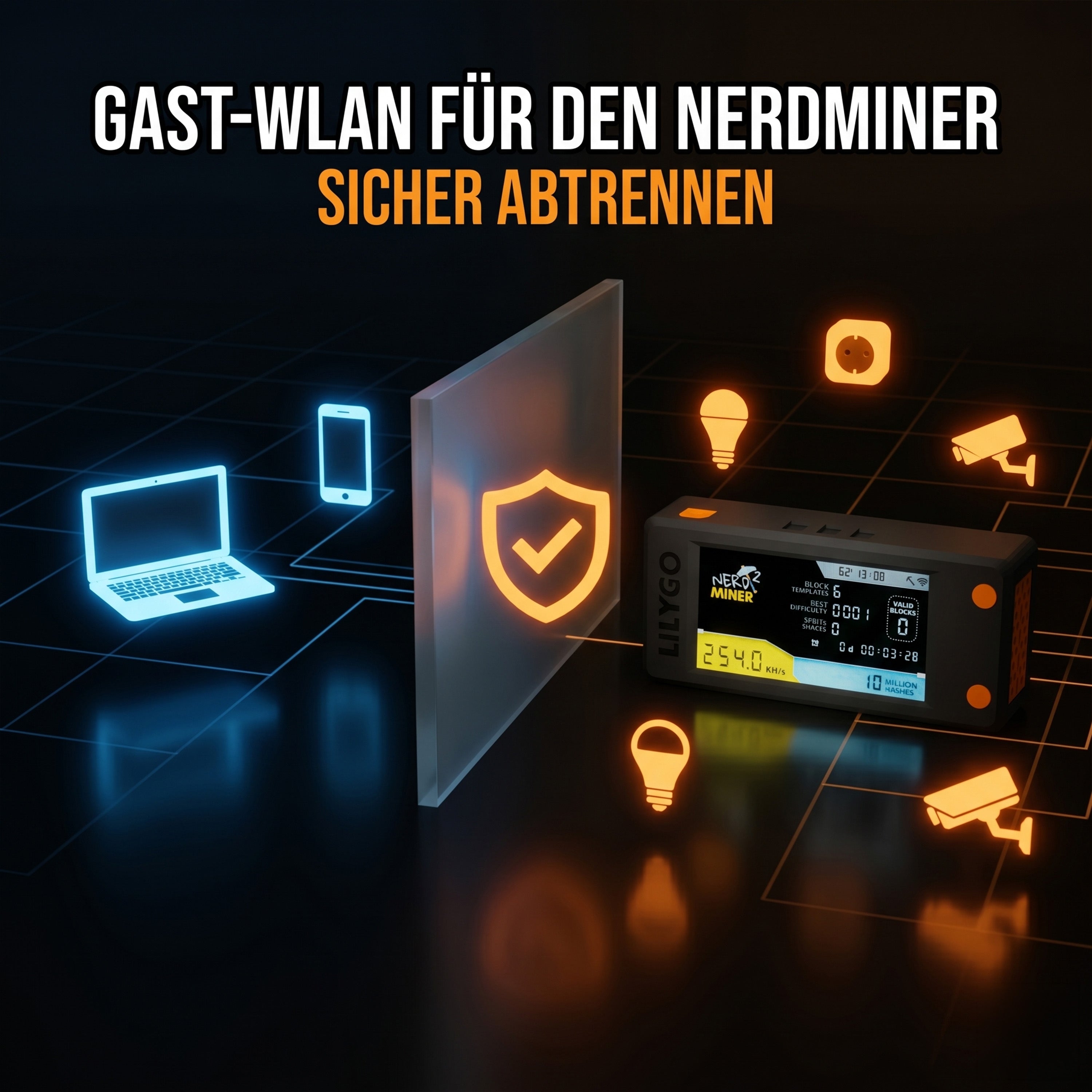
The Nerdminer V2 and the NerdNOS are IoT devices, like smart bulbs or robot vacuums. For security they belong on an isolated guest network rather than your main one. That also solves the common 2.4 GHz problem, because guest networks almost always broadcast on 2.4 GHz. Your main network stays exactly as it is.
The Nerdminer V2 is an IoT device like any other, and just like smart bulbs, robot vacuums or smart speakers it brings risk onto your home network. The firmware is open source, the device connects to internet pools and exchanges data. From a security point of view the Nerdminer V2 (and equally the NerdNOS) does not belong on the same network as your main computers, where your banking apps, photos and private documents live. The answer: a dedicated guest network, isolated from your main one. This guide shows you how to put the Nerdminer V2 on a guest network safely, and why that has other benefits too.
Why a guest network for the Nerdminer V2?
There are three good reasons to put the Nerdminer V2 on a separate network segment:
- Security: if the Nerdminer (or another IoT device on the same network) is compromised, an attacker has no route to your PC, your phone or your NAS. Guest networks are isolated from the main network by default.
- It solves 2.4 GHz: many routers broadcast the guest network on 2.4 GHz automatically, because it is more robust and needs less configuration. If your main network is 5 GHz only, you can put the Nerdminer on the guest network without touching your main setup.
- Clarity: with several mining devices, they sit neatly grouped on the guest network rather than mixed in with private ones. That makes network diagnosis easier.
What is a guest network, technically?
A guest network is a second Wi-Fi network on your router, configured separately in its web interface. It has its own name (SSID), its own password and, crucially, devices on it usually cannot talk to devices on the main network. They have internet access but no access to anything else in your home.
That isolation is the important security property. In router jargon it is called client isolation or AP isolation, and on most routers it is switched on by default for the guest network.
-
Set up the guest network on your router
The configuration varies by router. Find yours in the list and enable the guest network, making sure to fix the band to 2.4 GHz:
FritzBox
- Open
fritz.boxin the browser - WLAN → Gastzugang
- Tick "Gastzugang aktivieren"
- Give the network a name (
FRITZ!Box-Gast, for instance) - Set a WPA2 password (at least 12 characters)
- Important: select "Funkkanal in 2,4 GHz", not "auto" and not "5 GHz"
- Save
Speedport (Telekom)
- Open
speedport.ipin the browser - Heimnetzwerk → WLAN-Gastzugang
- Enable it, give it a name and a password
- Set "Frequenzband" to "2,4 GHz"
Vodafone EasyBox
- Open
easy.boxor192.168.2.1in the browser - WLAN → Gastnetz
- Enable and configure
Google Nest WiFi / Eero / Deco (mesh)
- Look for "guest network" in the relevant app
- Enable it; mesh systems put the guest network on 2.4 GHz automatically
UniFi / Ubiquiti
- In the controller: Settings → Wi-Fi → Create New Wi-Fi Network
- Enable "Guest Network"
- Under "Wi-Fi Bands" select only "2.4 GHz"
-
Enable
client isolation
- Open
-
Connect the Nerdminer V2 to the guest network
Once the guest network is up, configuring the Nerdminer is identical to the normal setup:
- Switch the Nerdminer V2 on
- Connect a phone or laptop to the
NerdMinerAPsetup network - Open
192.168.4.1in the browser - In the network list pick the guest network, not your main one
- Enter the guest network password
- Enter your bitcoin address
- Save; the Nerdminer restarts
Within a minute or two the display shows the hash rate. The Nerdminer is now fully isolated from your main network but can talk to
public-pool.iowithout trouble. On the NerdNOS the process is the same through the Hashlink app: at the Wi-Fi step you simply pick the guest network.
No bitcoin address of your own yet?
Step 2 needs a bitcoin address for your mining rewards to go to. We recommend a free account at eToro (EU regulated), where you'll find your receive address in the eToro wallet. Prefer a wallet that only you control? Then Tangem, 10% off through our link.
Start free at eToro →What does not work on a guest network?
Most routers restrict certain functions on the guest network for security. For the Nerdminer V2 (and the NerdNOS) these are the relevant limits:
- No communication between devices on the guest network. If you run several Nerdminers there, they cannot see each other. For mining that makes no difference: each Nerdminer talks only to the pool, never to another Nerdminer.
-
No access from the main network to the Nerdminer. You cannot open the Nerdminer's web dashboard (
http://192.168.x.x) from a PC on the main network. If you need that, connect to the guest network first. - Some routers cap bandwidth on the guest network. With the Nerdminer's tiny data volume (~1 KB a minute) that is entirely irrelevant.
The benefits at a glance
- Security in place: a firmware bug or a compromised pool connection gives no access to your main network
- 2.4 GHz solved: guest networks almost always broadcast on 2.4 GHz
- Main network untouched: you change nothing about your existing setup
- Scalable: add as many Nerdminers (or other IoT devices) to the guest network as you like
- Tidy: mining devices neatly grouped
Common questions about running the Nerdminer on a guest network
Can I restrict the guest network to 2.4 GHz if my router offers both bands?
On most routers yes. The guest network settings usually include a band option. Fix it to 2.4 GHz rather than "auto" or "both".
Does a guest network slow down my main network?
No, not noticeably. Both networks use the same router hardware, but a Nerdminer V2's bandwidth (around 1 KB a minute) is far too small to register in the overall traffic.
Can I still reach the Nerdminer while it is on the guest network?
You have to connect to the guest network yourself for a moment (with your phone, for instance), then you can open the web dashboard at its guest network IP. From the main network access is blocked, which is exactly the point of the separation.
Does this work with OpenWrt or pfSense?
Yes. On OpenWrt you can create an additional wireless network, assign it its own VLAN ID and isolate it from the main network with firewall rules. On pfSense you create a separate interface with its own subnet and block inter-subnet traffic in the firewall.
Do guest networks reduce Wi-Fi performance?
Practically not. Modern routers treat the guest network as an additional SSID on the same physical radio, with minimal overhead. You will not notice a difference.
Read on
Order a Nerdminer
The Nerdminer V2, preconfigured and ready to run. If you want more hash rate for solo mining, take the NerdNOS.
To the Nerdminer V2 in the shop → To the NerdNOS in the shop →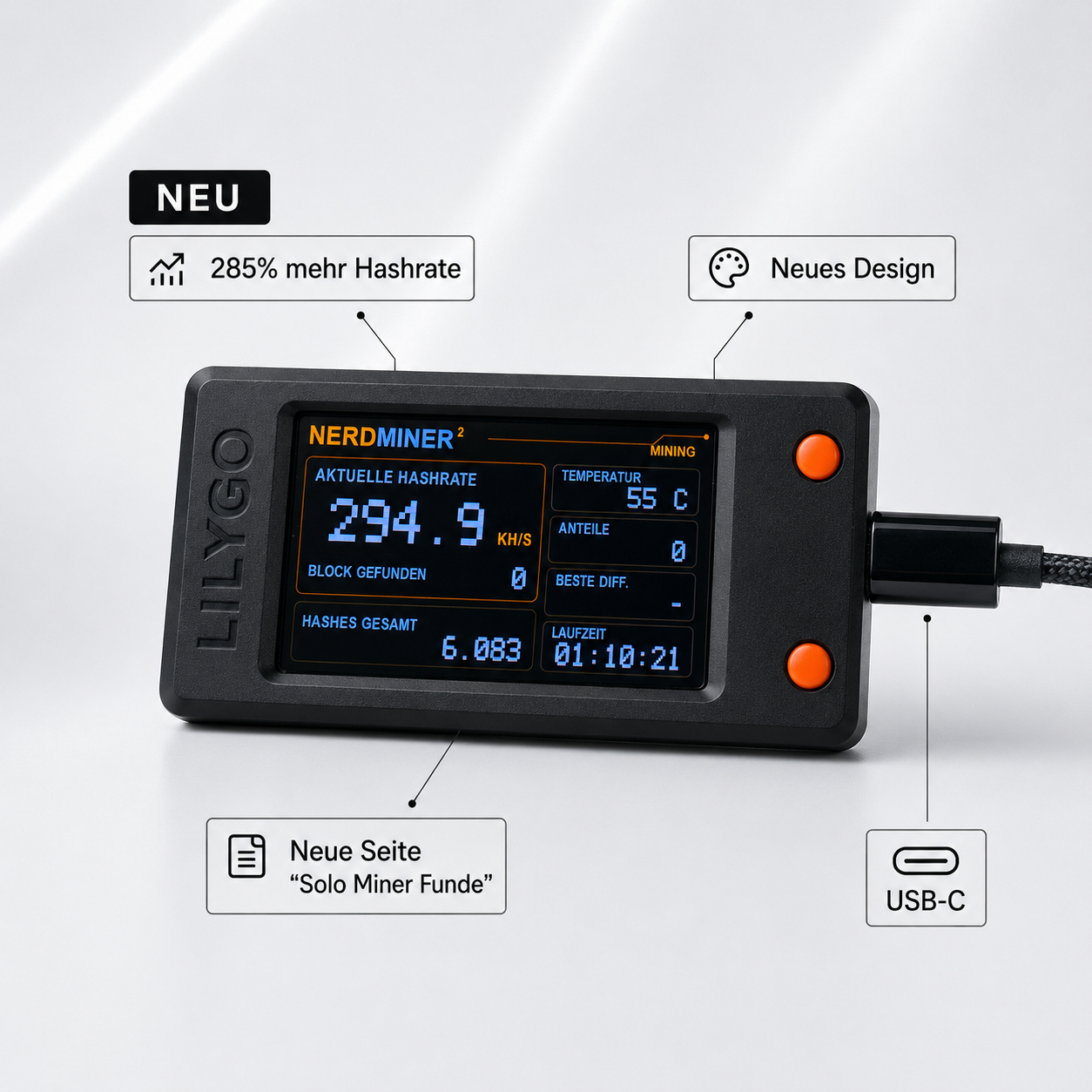


Teilen: